Say the keyword. Skip the scan.
VoiceQR® lets people open any scannable code by saying its short keyword to the voice assistant they already use. No camera, no aiming, no waiting. It takes about two seconds.
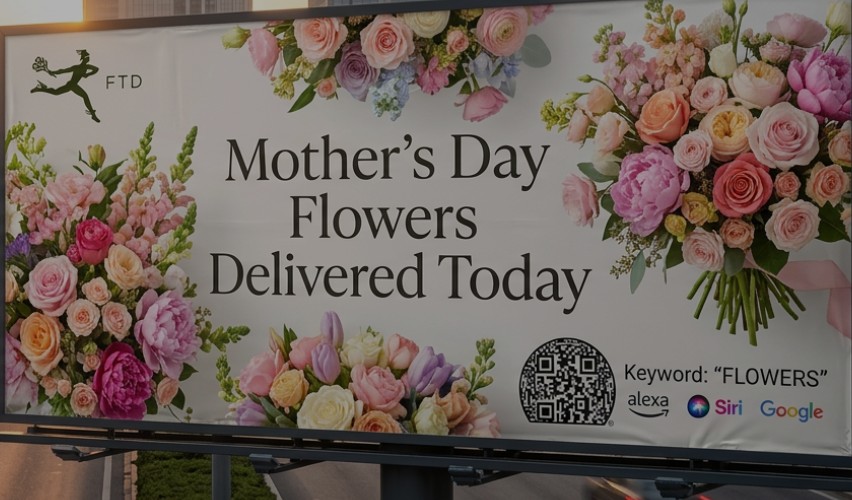
One spoken word replaces nine steps.
Scanning means finding your phone, opening the camera, pointing, zooming and tapping, and it fails the moment a code is too far away, too small, or already gone. VoiceQR collapses that into a single command.
See a keyword
A short, easy-to-say VoiceQR keyword sits next to any standard QR or scannable code, on a screen, a sign or a broadcast.
Say or type it
Tell Siri, Alexa, Google Assistant or an AI chat service, or type it. No app and no camera.
It opens
SmartPoint resolves the keyword to the right page, place, payment or call, and logs the interaction against that exact screen, location or broadcast.
Harder to fake than a sticker.
A fraudulent QR sticker can point anywhere. A VoiceQR keyword only works if SmartPoint has registered it and fenced it to a place or channel.
Keywords are geo-fenced and channel-fenced, so a spoken keyword opens only the code the person is looking at, at that time and place. Because VoiceQR works only with trusted sources, random stickers do nothing.
| Scanning | VoiceQR® | |
|---|---|---|
| Steps | Up to nine | One spoken command |
| Camera | Required | Not needed |
| Fake stickers | Can send you anywhere | Only registered codes resolve |
| At a distance or in motion | Often fails | Works |
| Smart glasses and voice assistants | Awkward | Built for them |
| Attribution | Limited | Logged per screen, place and broadcast |
Works where cameras don’t.
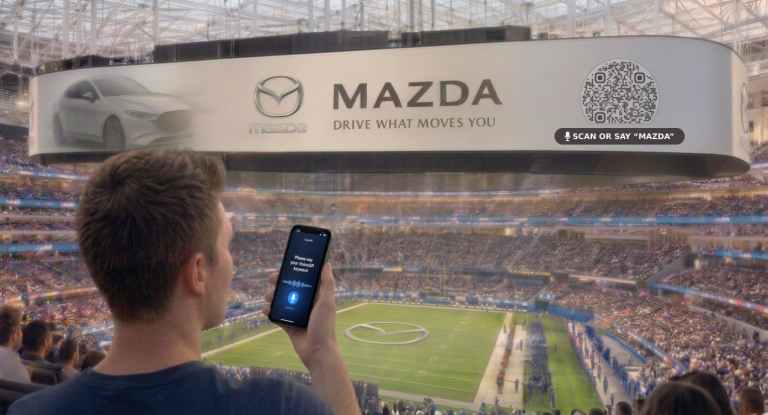
Distant or vanishing codes
Stadium screens, broadcasts and moving signs are out of reach before you can aim a camera. A keyword you can say still works.
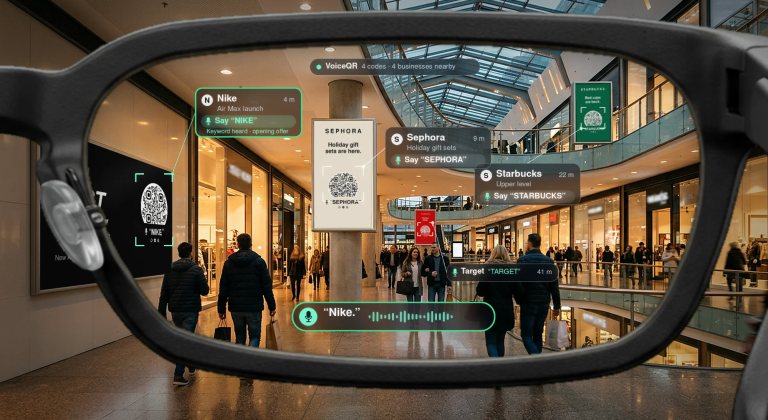
Smart glasses and wearables
Voice is the natural input for AR glasses, watches and speakers, and codes shown in AR or VR can be activated the same way.
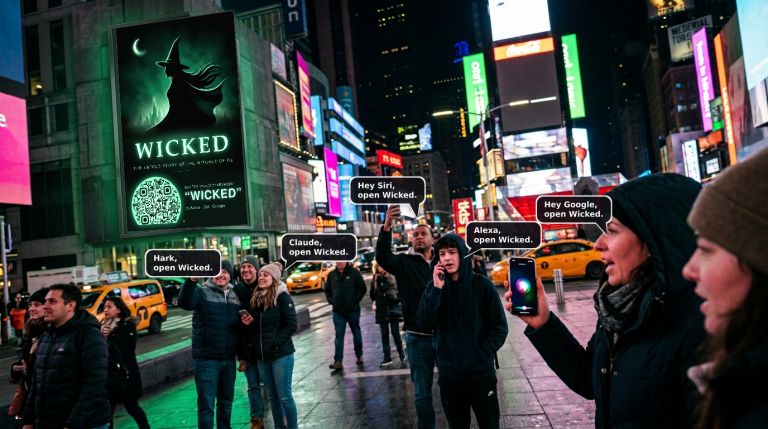
Many people, one code
A crowd can activate the same code at the same moment without lining up in front of it.
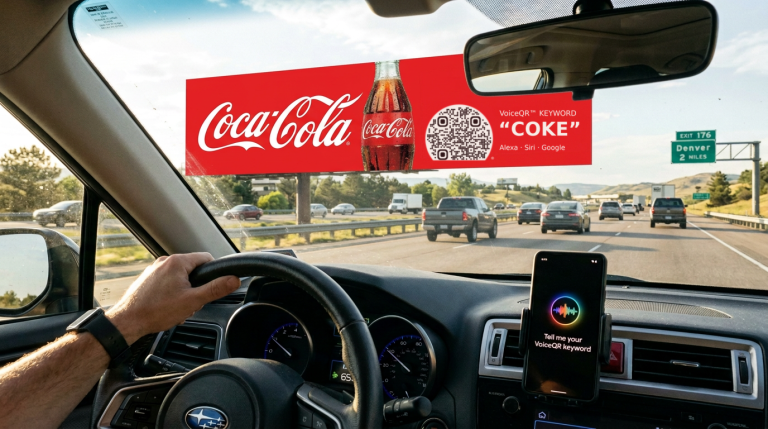
Roadside signs and billboards
Passengers can say the keyword as the sign goes by. Drivers keep their eyes on the road and their hands free.
Voice, place and privacy, designed together.
Smart glasses, assistants and screens will all be driven by voice, and they will all need to know where you are and who you are. We are building the three parts that make that work, with the person at the center.
@® Code: the small place
A short code for a specific doorway, gate, shelf or parking space, easy to say, share and resolve, with or without a map.
VoiceQR®: say the code
Activate any physical or virtual QR code by voice, at a distance, hands free, on any screen, sign or lens.
Own It®: your biometric attributes
Your face, fingerprint and voiceprint belong to you. You permit each use, and you can end every one from a single place.
Own It®: you own your biometric attributes, not just your identity.
Your facial imprint, fingerprint and voiceprint cannot be reset like a password, yet most companies treat them as data they collect. Own It is a registry and network built on the opposite idea. You register what is yours, you decide who can use it and for what, and you can end it everywhere from one place.
Register
Put your biometric attributes (voiceprint first), identity, contact details and locations on record in one place that belongs to you.
Control
Permit specific parties, for specific purposes, for as long as you choose. Everything else stays closed.
Network
Retailers, venues, government agencies and platforms join by signing the Own It Charter and honoring your settings.
Revoke once
End access in one place. Participants must stop using and eliminate what they hold about you within three days, to the maximum extent practical.
Behind it is years of invention: an extensive portfolio of issued and pending U.S. and international patents in identity, location and registries.
Built to plug into the screens you already run.
You bring the screen network, the content management system and the client relationships. We bring the patented voice activation layer and the keyword registry.
That adds a new way for your existing clients’ audiences to engage, with no hardware changes and minimal integration. We are reviewing commercialization and licensing partners now.
Led by people who built mobile local search.
Our team includes inventors, a United Nations AI expert and leaders in mobile search and strategic partnerships.
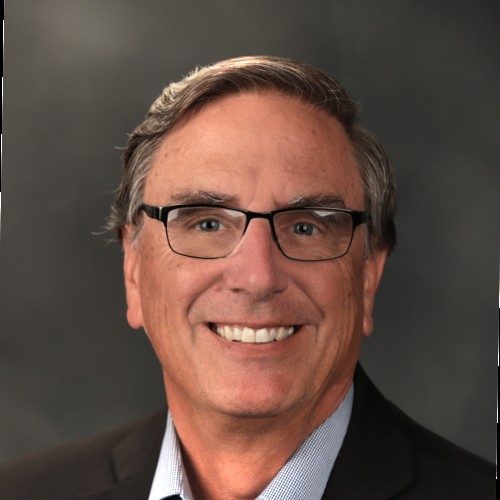
Lee Hancock
Mobile local search pioneer and prolific inventor with more than 50 patents. Founder of go2, the first dominant mobile local search platform.

Neil Sahota
United Nations AI expert, IBM Master Inventor and UC Irvine faculty member with 20+ years building large-scale AI solutions, including IBM Watson.
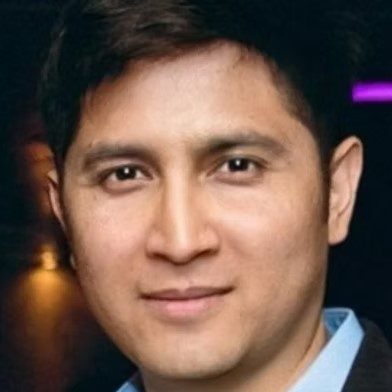
Phil Dhingra
Has founded and sold multiple startups, including the virtual land startup Landemic and an iOS app studio.

David Honeman
Has led relationship development with thousands of C-level executives through his management of the YPO partnership with Opportunity Network.
Talk to us.
Interested in licensing, a partnership or a pilot? Send a note, or email dhoneman@voiceqr.com.